Teevo

All Features

54 features on Apple TV, Mac, iPad and iPhone.

Sources

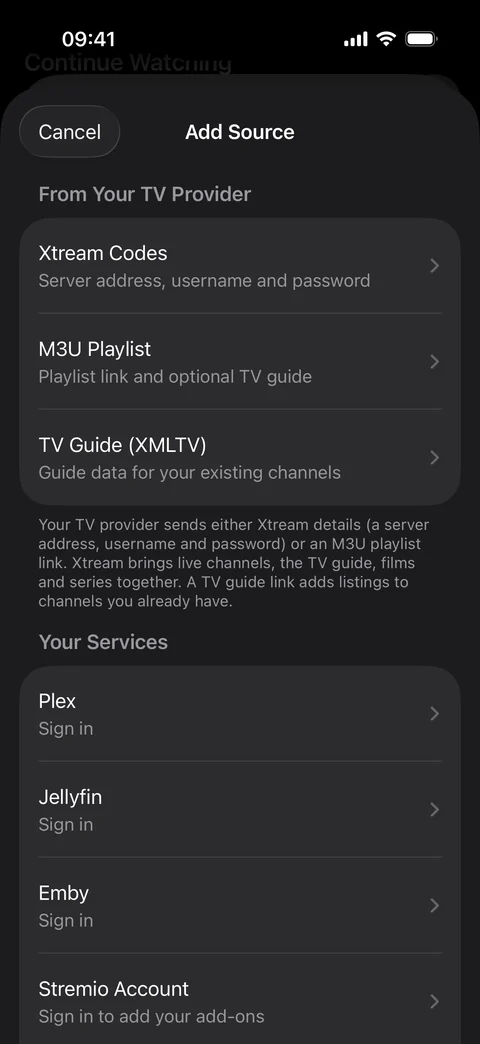
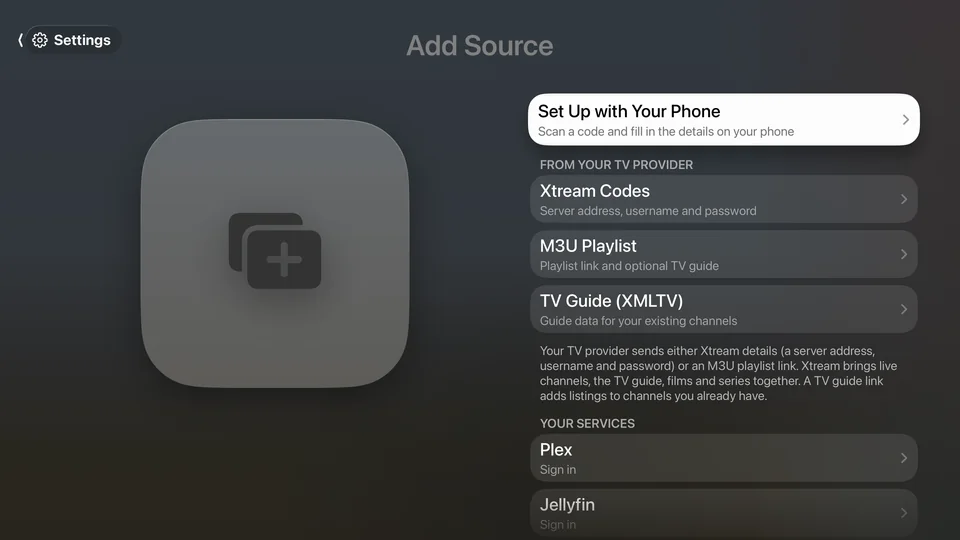
Add Source on Apple TV: Set Up with Your Phone, Xtream Codes, M3U Playlist, TV Guide, Plex and Jellyfin

Xtream Codes and M3U

Add your TV provider’s Xtream Codes account or M3U playlist, with its XMLTV guide, over https or plain http.

A provider on plain http is used only after you agree, because others on the network could see your sign-in and what you watch.

  • Apple TV
  • Mac
  • iPad
  • iPhone
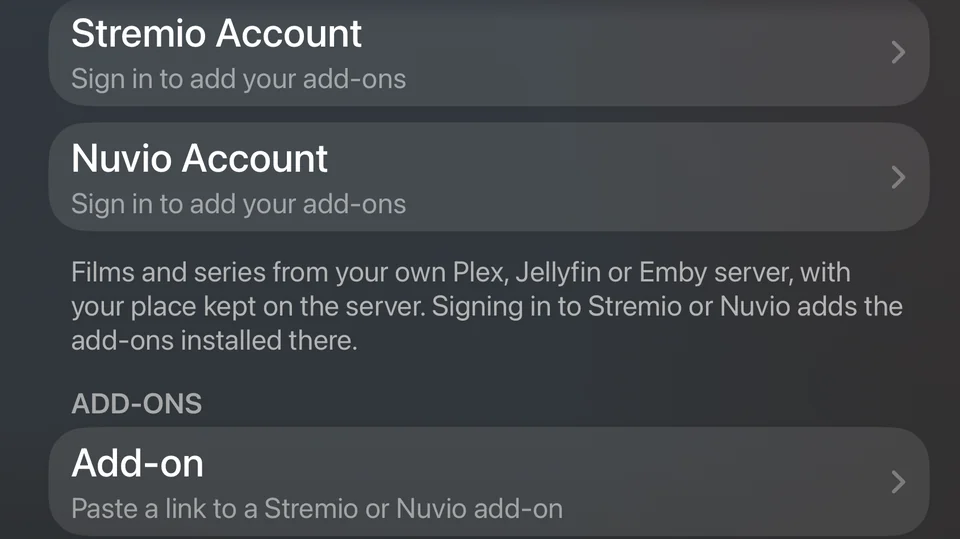
Add Source on Apple TV: Stremio and Nuvio accounts and add-ons

Stremio Add-ons

Add compatible add-ons for catalogues, streams, subtitles and live channels, or sign in to Stremio or Nuvio to bring your library across.

  • Apple TV
  • Mac
  • iPad
  • iPhone
Add Source on iPhone: Xtream Codes, M3U, XMLTV, Plex, Jellyfin, Emby and Stremio

Plex, Jellyfin and Emby

Watch the films and series on your own server, at home over plain http or anywhere over https. Plex signs in with a code on your phone.

  • Apple TV
  • Mac
  • iPad
  • iPhone
Add Source on Apple TV: Network Folder and SMB Share

SMB Shares

Play films and series from a NAS drive or a computer on your network, signed in or as a guest. Servers that announce themselves are listed to pick from.

  • Apple TV
  • Mac
  • iPad
  • iPhone

Network Folders

Add a WebDAV folder or a web server’s folder listing, at home over plain http or anywhere over https. Films and series are recognised from their names.

  • Apple TV
  • Mac
  • iPad
  • iPhone

Files on Your Device

Add a folder from Files or Finder, or open a video or .strm file with Teevo to play it straight away.

  • Mac
  • iPad
  • iPhone

Live TV & Guide

Programme Guide

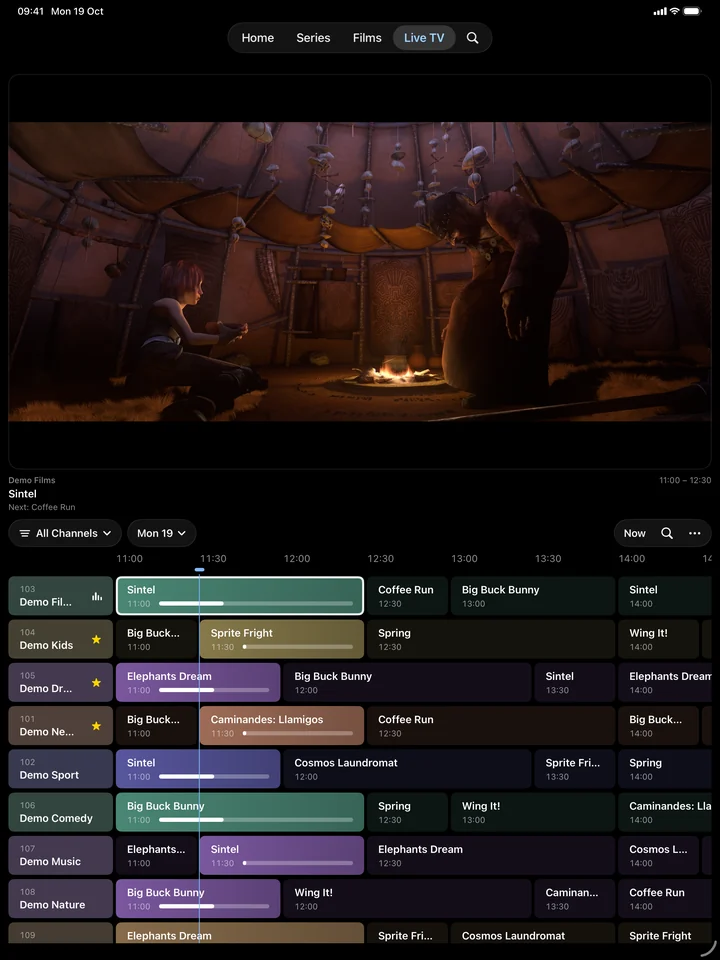
Move through channels and the next 24 hours, jump back to now, and open any programme for its details.

  • Apple TV
  • Mac
  • iPad
  • iPhone

Multiview

Watch up to four live channels at once, with the sound from the one you choose.

  • Apple TV
  • Mac
  • iPad
  • iPhone
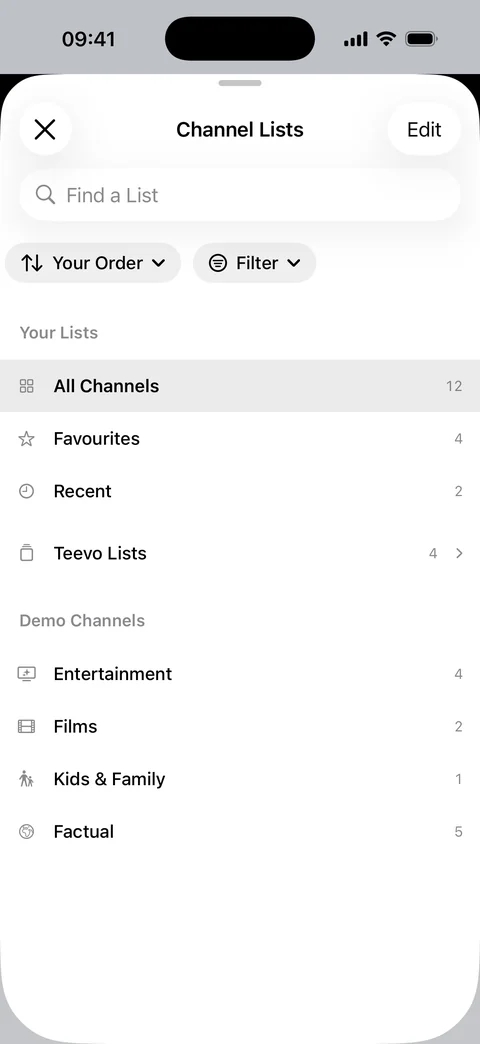
Channel Lists on iPhone: Your Lists and the source’s categories

Channel Lists

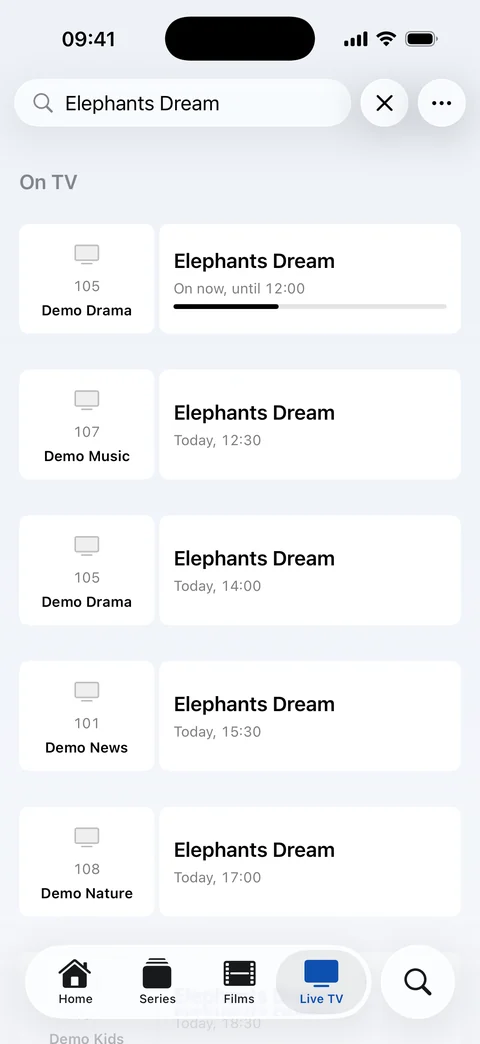
Your own lists come first: favourites, recent channels, your playlists, the categories you pin, and any XMLTV guide you add as a list of the channels it covers. Then Teevo Lists, folded: your region’s main channels and lists for Sport, News, Kids and Films. Favourite, hide, rename or find any channel by its name or number. Sort any list by number, name, what you watched last or favourites first, filter it to HD, channels with a guide or favourites, and move any list into Teevo Lists or out of them, by dragging it or with the remote.

  • Apple TV
  • Mac
  • iPad
  • iPhone
Full-screen live TV with what’s on later and Select to be reminded

Reminders Plus

Set a reminder in the guide, and Teevo asks if you’d like to watch when the programme starts. iPhone and iPad send a notification too.

  • Apple TV
  • Mac
  • iPad
  • iPhone

Extended EPG Plus

See everything your provider lists, beyond the next 24 hours.

  • Apple TV
  • Mac
  • iPad
  • iPhone

Pause Live TV

Pause a channel and pick it up again, as far back as the channel allows. Live Rewind can keep up to 4 GB on the device to move back through.

Live Rewind is off until you choose a size, and works in VLC for channels sent as one continuous stream.

  • Apple TV
  • Mac
  • iPad
  • iPhone

Catch-Up and Start Again

Start any programme from the beginning, and catch up on what you missed.

Needs a provider that offers catch-up.

  • Apple TV
  • Mac
  • iPad
  • iPhone

Saved for Catch-up

Save programmes from the guide to watch later on catch-up.

These are bookmarks, not recordings: playback depends on your provider’s catch-up.

  • Apple TV
  • Mac
  • iPad
  • iPhone

About This Programme

When the guide doesn’t describe a programme, a line about it is written on your device from the catalogue’s description, marked as generated.

Not available in Arabic.

  • Mac
  • iPad
  • iPhone

Films & Series

Watch From on Apple TV: Big Buck Bunny from an add-on stream and the film library

One Page for Each Title

A film or series from several sources shows once, with its cast and crew, trailer and Rotten Tomatoes scores. Watch From lists every copy to choose from.

  • Apple TV
  • Mac
  • iPad
  • iPhone
The director’s page on Apple TV: Known For and Directed

More from the Director

A film’s page has more from its director and a series’ page more from its creator, marked Director or Creator, beside More Like This and more with the lead actor.

  • Apple TV
  • Mac
  • iPad
  • iPhone
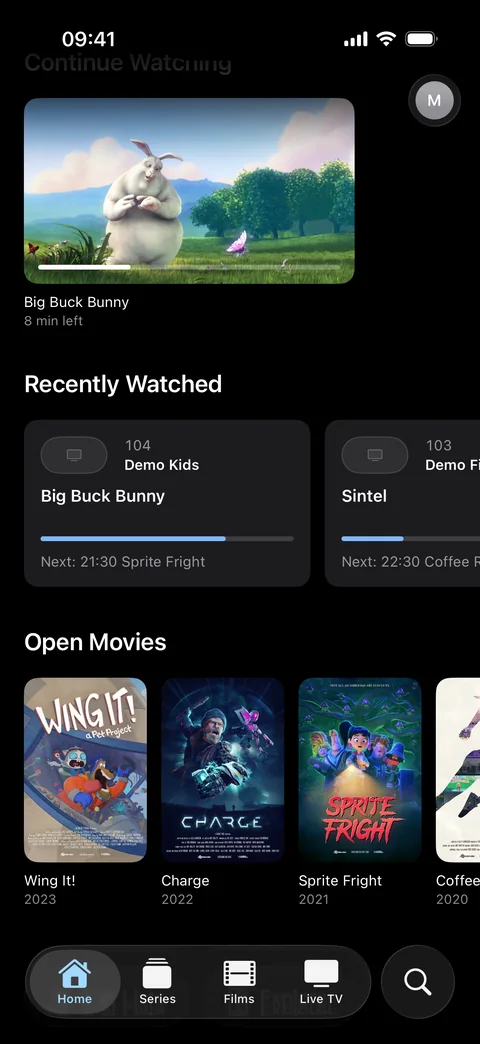
Teevo Home on iPhone: Continue Watching, recently watched channels and Open Movies posters

Continue Watching

Pick up where you stopped. The next episode is waiting once it has aired, and films, episodes and seasons can be marked as watched.

  • Apple TV
  • Mac
  • iPad
  • iPhone

Ask in Your Own Words

Search for “something like Slow Horses but lighter”, and a Suggestions row picks titles from the catalogue.

Not available in Arabic.

  • Mac
  • iPad
  • iPhone

Previously On

A line above a series’ episodes offers a recap of the last one you watched. Choose it, and a few sentences are written on your device from its subtitles.

Written from subtitles, so some details may be wrong. Turn recaps off on the card or in Settings → Films & Series. Needs the episode’s subtitles with your copy or from a subtitle add-on, and isn’t available in Arabic.

  • Mac
  • iPad
  • iPhone

Sort and Filter

See All sorts and filters by genre, era, picture quality, running time and what you’ve watched, and can be saved as a list of its own.

  • Apple TV
  • Mac
  • iPad
  • iPhone

Playback

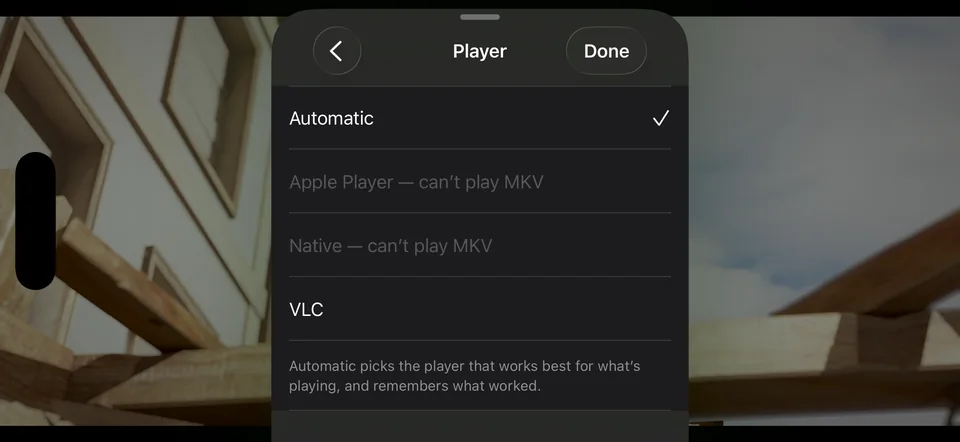
The Player menu on iPhone: Automatic, with Apple Player and Native unable to play MKV, and VLC

Three Players

Apple Player, Native and VLC. On Automatic, each film or episode goes to the player that plays its format best.

  • Apple TV
  • Mac
  • iPad
  • iPhone
Sintel playing on Apple TV with the player controls

Audio and Subtitles

Set your languages once, and the right sound and subtitles are chosen. Subtitle files beside your videos and from add-ons are found too, in the style you choose.

  • Apple TV
  • Mac
  • iPad
  • iPhone
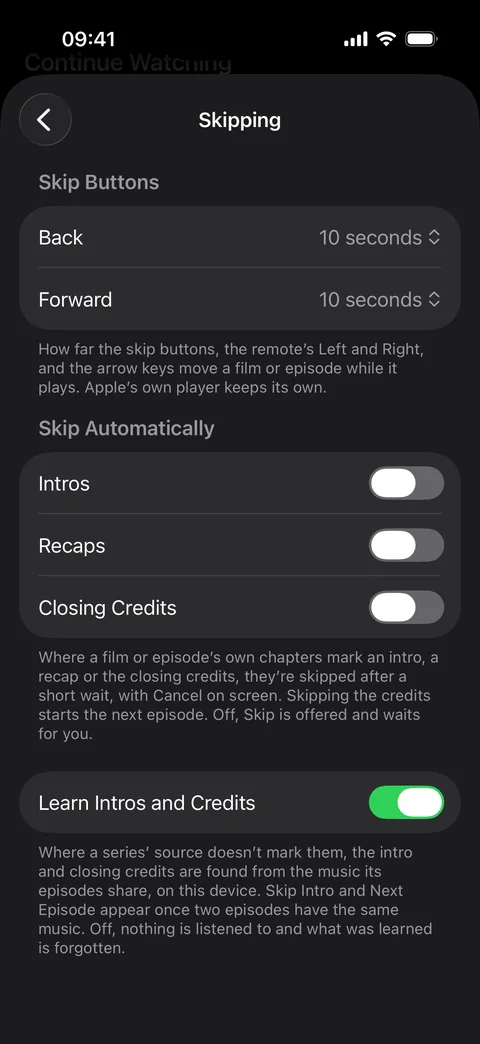
Skipping settings on iPhone: skip buttons, Skip Automatically and Learn Intros and Credits

Skip Intro and Next Episode

Skip intros, recaps and credits, and the next episode starts after a countdown. Where your source doesn’t mark them, intros and credits are learned on your device from the music episodes share.

Learning takes a few episodes and doesn’t work with every stream. In VLC it needs a file on your device or a provider that allows more than one connection. Turn it off in Settings → Playback → Skipping.

  • Apple TV
  • Mac
  • iPad
  • iPhone

Subtitles When There Are None

Where a film or episode has no subtitles in your language, Teevo writes them from what’s said, and can translate them, on your device.

In Native and VLC, and not with every stream. VLC needs a file on your device or a provider that allows more than one connection. Translating needs both languages downloaded on your device.

  • Mac
  • iPad
  • iPhone

Previews While Scrubbing

Moving through a film or episode shows a still of where you’ll land.

Where your provider allows only one connection, the picture itself moves instead.

  • Apple TV
  • Mac
  • iPad
  • iPhone

Speed, Sync and Sleep Timer

Play from 0.5× to 2×, nudge sound or subtitles into step, and stop at the end of the film or episode.

  • Apple TV
  • Mac
  • iPad
  • iPhone

Picture in Picture and AirPlay

Keep watching in a small window while you use other apps. On iPhone and iPad, send the picture to an AirPlay TV.

In Apple Player and Native, not VLC.

  • Mac
  • iPad
  • iPhone

Your Way

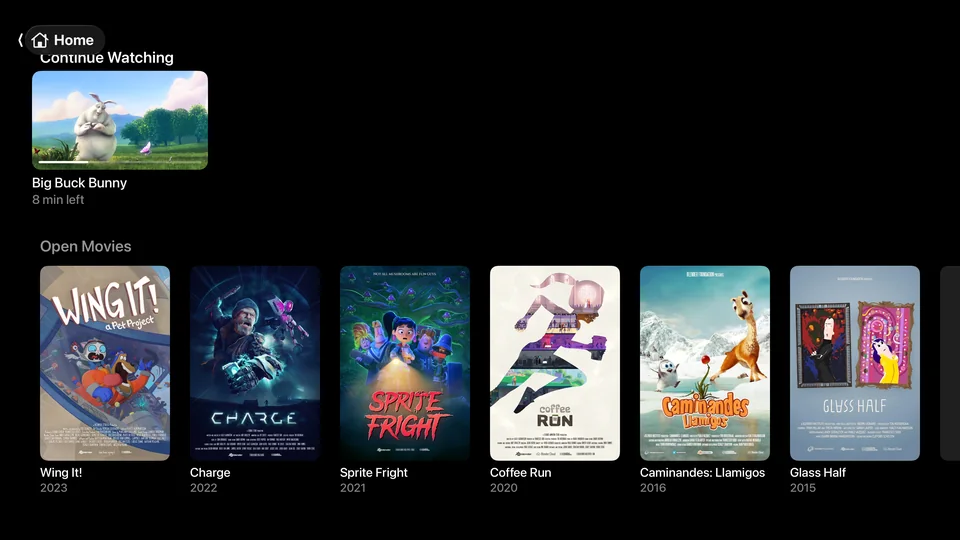
Teevo Home on Apple TV: Continue Watching and the Open Movies posters

Arrange Home and Lists

Home, Films and Series start with a few lists. Edit Lists, at the end of each page, shows, hides and reorders them, adds more from your accounts, add-ons and Teevo Lists, and hides all of Teevo’s at once. Explorer shows every list to look through first.

  • Apple TV
  • Mac
  • iPad
  • iPhone
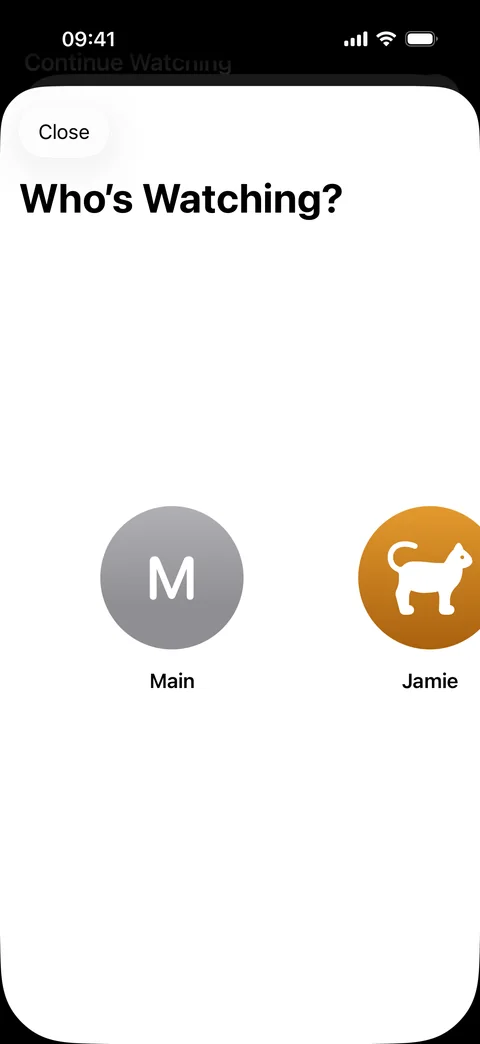
Who’s Watching? Profiles on iPhone

Profiles and Restrictions

Each person keeps their own Continue Watching, Saved for Later and lists. Add or change a profile picture directly in Profiles; the current profile also has a picture button in iPhone and iPad Settings. A PIN protects adult channels, films above an age you choose and anything you lock.

  • Apple TV
  • Mac
  • iPad
  • iPhone

Trakt and Simkl

Each profile signs in with a code on a phone. What you watch and rate goes to your account, and your watchlist and lists become rows.

  • Apple TV
  • Mac
  • iPad
  • iPhone

Appearance

Pages take a soft colour from their artwork. Choose the app icon, and whether Home opens on featured titles or your own lists. Featured titles keep year and genre details uncluttered.

  • Apple TV
  • Mac
  • iPad
  • iPhone

Seven Languages

Teevo is in English, Arabic, German, Spanish, French, Brazilian Portuguese and Turkish, and follows your device’s language.

  • Apple TV
  • Mac
  • iPad
  • iPhone

Accessibility

VoiceOver actions on cards, more room for larger text, and less motion when Reduce Motion is on.

  • Apple TV
  • Mac
  • iPad
  • iPhone

Siri, Spotlight and Handoff

Ask Siri to play a channel or carry on watching, find your titles in Spotlight, and continue a film on your other iPhone, iPad or Mac.

  • Mac
  • iPad
  • iPhone

Apple TV

Add Source on Apple TV: Set Up with Your Phone, Xtream Codes, M3U Playlist, TV Guide, Plex and Jellyfin

Set Up with Your Phone

Scan a code and type your provider’s details on your phone. They go straight to the Apple TV over your home network.

  • Apple TV

Top Shelf

Continue Watching and your recent channels on the Apple TV Home Screen, ready to resume or tune.

  • Apple TV

Match Frame Rate

In full screen, the TV switches to each stream’s frame rate, so movement looks as it was filmed.

Turn on Match Content in the Apple TV’s Settings too.

  • Apple TV

Mac

Teevo’s Mac player window playing Big Buck Bunny

Player Window

What you play opens in its own window and goes full screen. Space, the arrow keys, J, K and L, M, F, I and C work as in the TV app, all listed in the Controls menu, a two-finger swipe moves through a film, and live TV has the same options as films.

  • Mac
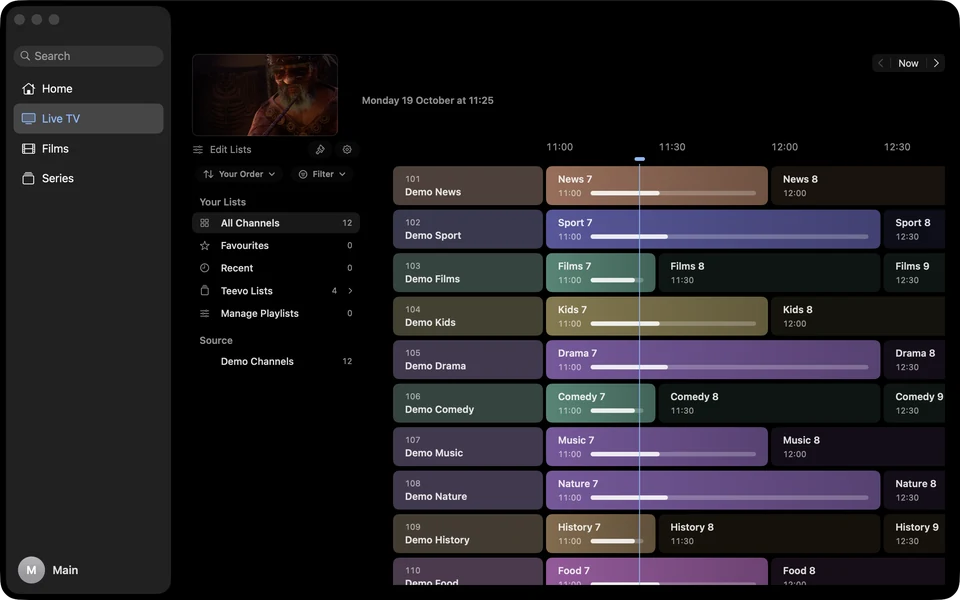
Live TV on Mac: the sidebar, your channel lists and the guide

Live TV with Mouse and Trackpad

Click what’s on to watch it in Live Preview, and again for the player. The wheel scrolls channels and a sideways swipe moves through time. Command-arrow jumps an hour, and Command-T or the mouse’s Back button returns to now.

  • Mac
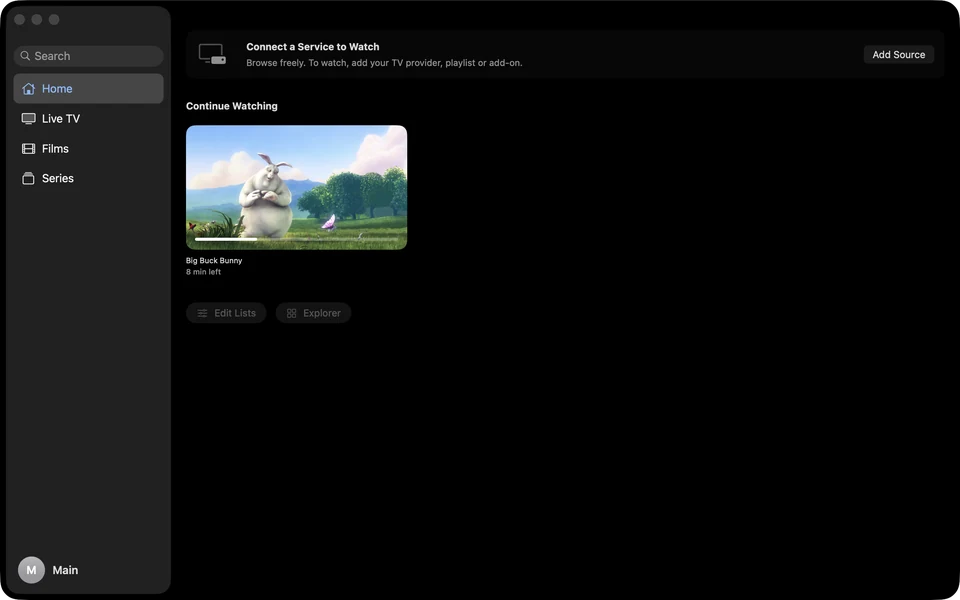
Teevo Home on Mac with Big Buck Bunny in Continue Watching

A Native Mac App

A sidebar with Search at its top, the Mac’s menus and keyboard shortcuts, and every page back where you left it. Rows move sideways with two fingers on a trackpad or the round buttons at their ends, without scroll bars. Back and Forward go through where the window has been, with Command-[ and Command-], a mouse’s side buttons or a swipe on the trackpad. Named Teevo in the Dock, Finder and Mac menus. Right-click the app’s lists folder to hide it. Edit Lists at the top of the guide sidebar lets you show it again.

  • Mac
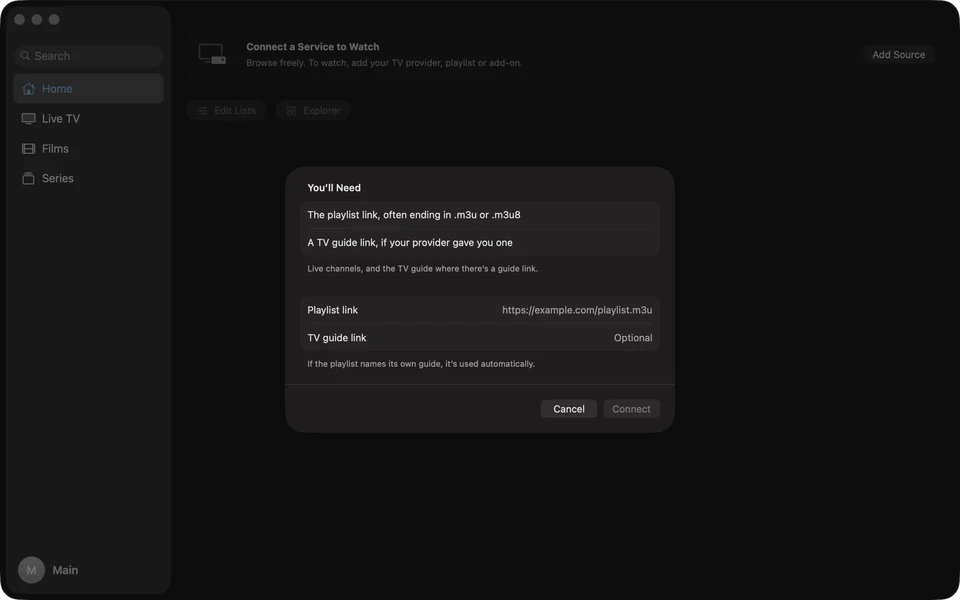
Add Source on Mac: the M3U playlist form as a sheet

Setup and Sign-in Sheets

Adding a source or signing in uses the Mac’s own forms, with each field named beside it. Return moves to the next field, and ordered lists can be dragged into place.

  • Mac

iPhone & iPad

Teevo’s guide on iPad, with live TV above it

A Guide for Touch

The guide scrolls both ways under your finger, with channels and times kept in place. Choose and edit channel lists in a panel that adapts to your screen.

  • iPad
  • iPhone
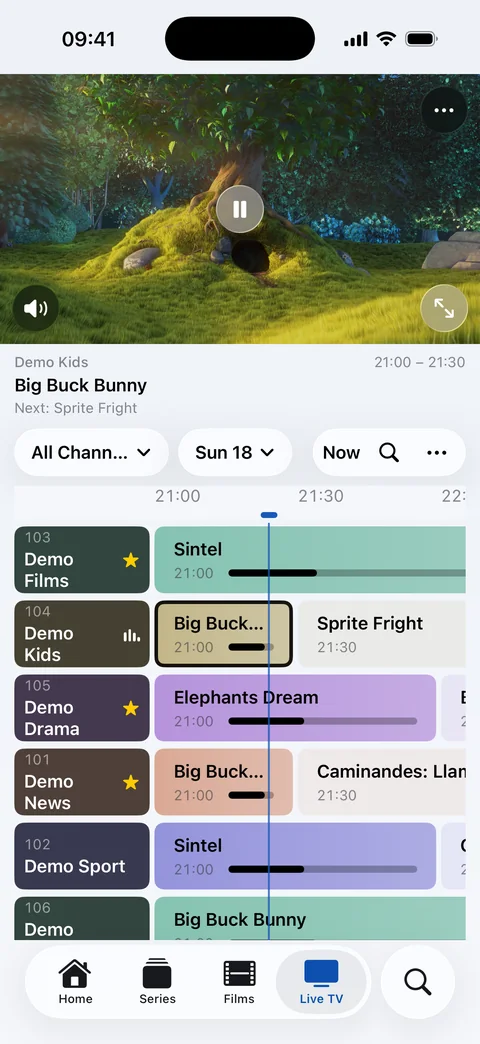
Live TV on iPhone: the channel above the guide

Live TV Upright

Watch a channel above the guide, with Play, Pause and More on the picture. Browsing another list keeps your channel playing until you choose another.

On iPad, with Live Preview on.

  • iPad
  • iPhone

Touch Controls

Pinch for Fit or Fill, hold the right side for 2× playback, or lock the controls. Swipe up from the guide’s picture for full screen and down to return. Swipe to Change Channels is optional in Playback settings.

  • iPad
  • iPhone

Privacy & Backups

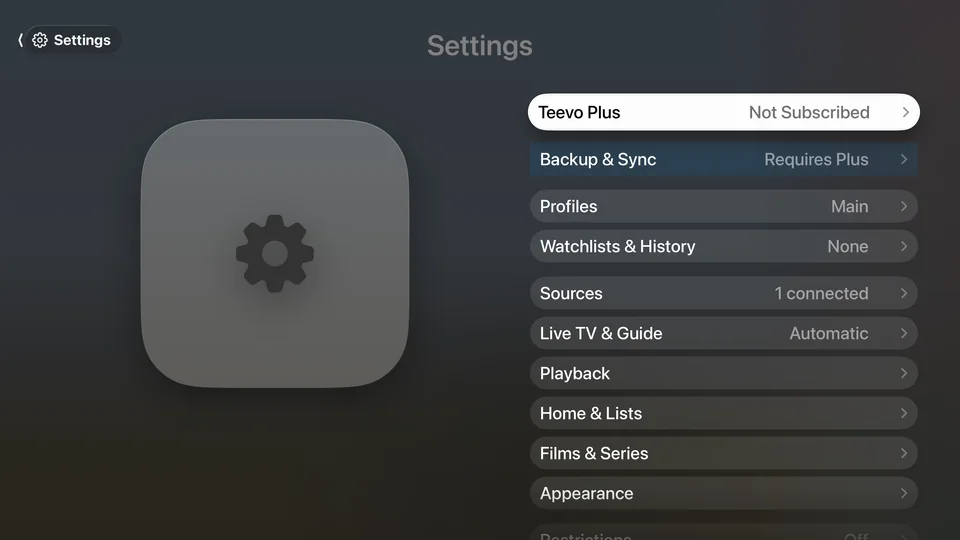
Settings on Apple TV: Teevo Plus, Backup & Sync, Profiles, Sources, Live TV & Guide, Playback

Backup & Restore

Save your sources, lists, settings and profiles to a file or to iCloud, and bring them back on any device. Sign-ins go in only if you choose, sealed with a passphrase.

Find backups and recovery help in Settings → Backup & Sync. Apple TV backs up to iCloud.

  • Apple TV
  • Mac
  • iPad
  • iPhone

Sign-ins in the Keychain

Passwords and sign-ins are kept in the Keychain on each device, and diagnostics never include them. With Teevo Plus and Sync Across Devices, they reach your other devices end-to-end encrypted.

  • Apple TV
  • Mac
  • iPad
  • iPhone

Feedback and Diagnostics

Send feedback or a feature request from your own email. A support report goes with it only if you choose, with counts and versions, never addresses or titles.

  • Apple TV
  • Mac
  • iPad
  • iPhone

No Ads

Teevo shows no advertising. Teevo Plus pays for its continued development.

  • Apple TV
  • Mac
  • iPad
  • iPhone

Teevo Plus

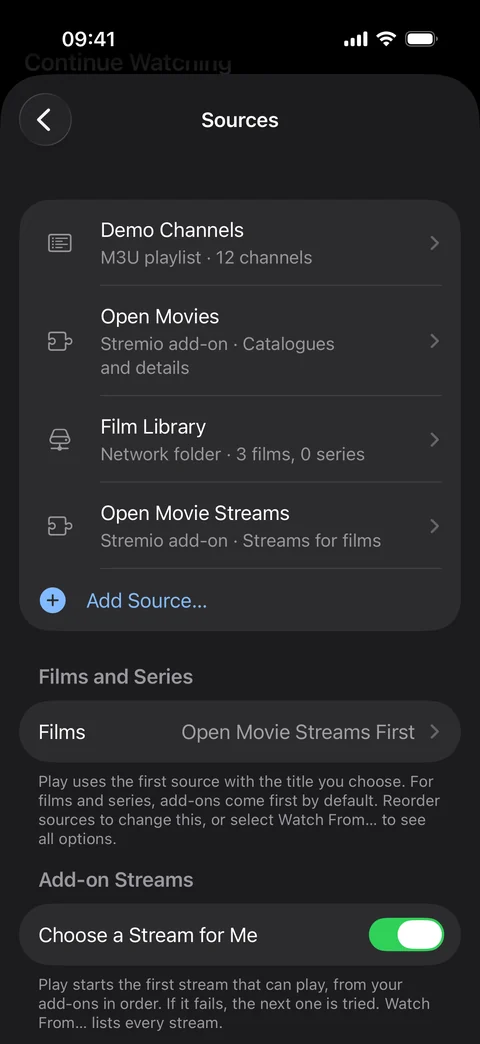
Sources on iPhone: demo channels, two add-ons and a film library

Unlimited Sources Plus

Add as many TV providers, media servers, folders and Nuvio or Stremio accounts as you like. Your first is free. An account counts once with all its add-ons, and a guide on its own never counts.

  • Apple TV
  • Mac
  • iPad
  • iPhone

Sync Across Devices Plus

Your sources and their sign-ins, favourites, channel lists, playlists and profiles with their pictures reach each of your devices, Apple TV included, end-to-end encrypted in your iCloud. Continue Watching, Saved for Later, Home’s lists, reminders and your guide, language and player choices stay the same on each one too.

Importing and syncing accounts from iCloud requires Teevo Plus and Sync Across Devices turned on. Existing accounts stay on the device when sync stops. A folder chosen on one device, the PIN and its restrictions, and Trakt or Simkl sign-ins stay on each device. Choose Source Accounts and Profiles separately in Settings → Backup & Sync. Turning either off keeps existing data on this device.

  • Apple TV
  • Mac
  • iPad
  • iPhone

Supporter Icons Plus

Choose Gold, Glacier or the glowing Plus icon.

  • Apple TV
  • Mac
  • iPad
  • iPhone

Monthly, Yearly or Lifetime

Compare Monthly, Yearly and Lifetime. Eligible monthly and yearly plans offer 7 days free, with the renewal price shown before you buy. The purchase button and billing details stay in view while you compare plans. A gold welcome confirms your Plus membership, with a feature-request link and a separate preview of future plans.

  • Apple TV
  • Mac
  • iPad
  • iPhone

App Capabilities

This is an overview of the availability of major features for Teevo.

Sources6
Live TV & Guide9
Films & Series7
Playback7
Your Way7
Apple TV3
FeatureApple TVMaciPadiPhone
Top ShelfNot availableNot availableNot available
Set Up with Your PhoneNot availableNot availableNot available
Match Frame RateNot availableNot availableNot available
Mac4
FeatureApple TVMaciPadiPhone
A Native Mac AppNot availableNot availableNot available
Setup and Sign-in SheetsNot availableNot availableNot available
Player WindowNot availableNot availableNot available
Live TV with Mouse and TrackpadNot availableNot availableNot available
iPhone & iPad3
FeatureApple TVMaciPadiPhone
A Guide for TouchNot availableNot available
Live TV UprightNot availableNot available
Touch ControlsNot availableNot available
Privacy & Backups4
Teevo Plus4

Ready to press play?

Your favourite TV channels, movies, and series. All in one place, playing beautifully.

Coming to the App StoreAll FeaturesRequest a feature