
Practical guide ·
Dvorak on an iPad keyboard, split or joined
SplitKeyboard includes Dvorak for people who want that letter arrangement on their iPad’s on-screen keyboard. You can use it with two split banks or one joined keyboard, then adjust the fit separately.
By Amberlake, maker of SplitKeyboard. Written with AI assistance and checked against the app’s current implementation. These are our development notes, not a community endorsement.
Support means paying attention to the details
People who use Dvorak have invested time in a different way of typing. We think that choice deserves more than a layout hidden in a settings menu. It deserves clear setup instructions, an honest explanation of differences and a way to report what gets in the way.
For background and an experienced user’s perspective, Randy Cassingham’s Dvorak FAQ discusses learning and switching between arrangements. Our app is a separate implementation; neither the author nor a Dvorak community has endorsed it.
Where to find Dvorak
- Open Keys and languages in the SplitKeyboard app.
- Choose Key arrangement, then Dvorak.
- Use the preview to check the letters and punctuation before changing the fit.
While typing, you can also tap the gear key, open Arrangement and use the letter-layout selector shown above the keyboard below.
Language and letter arrangement are separate settings. This guide covers the English Dvorak option. For adding the keyboard to iPad settings and switching between enabled languages, see setup and language help.
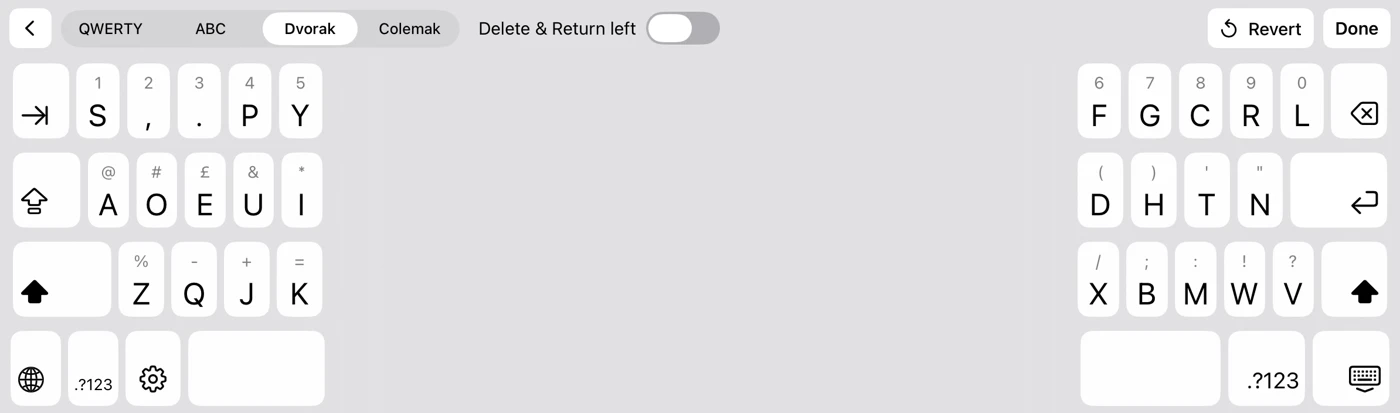
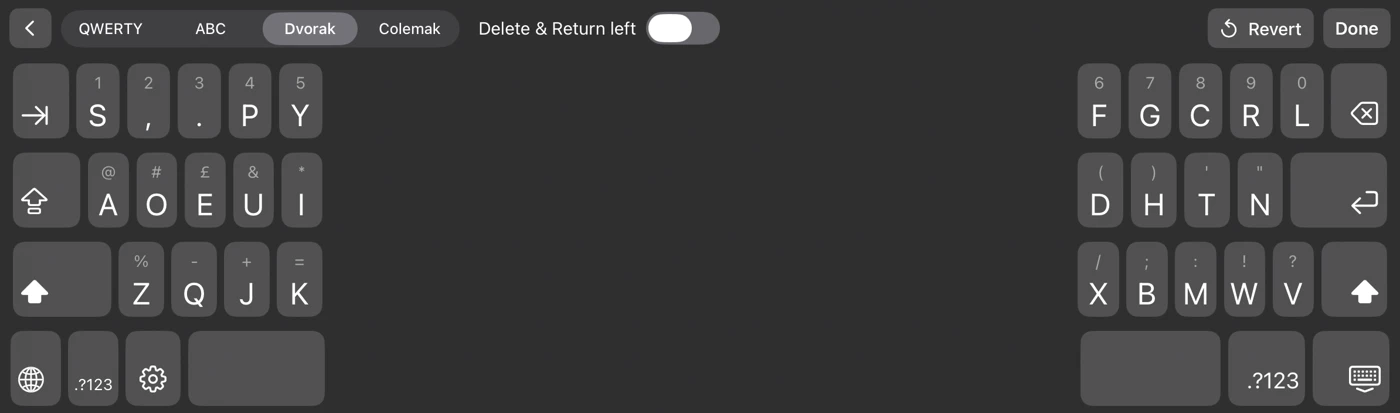
What changes on the compact keyboard
The compact iPad keyboard has fewer letter and punctuation positions than a desktop keyboard. In our Dvorak adaptation, S starts the top row and Z starts the bottom row, using the places where a desktop Dvorak user may expect apostrophe and semicolon. The compact middle row reads A O E U I D H T N.
The expanded arrangement has more positions: its middle letter sequence ends with S, and its bottom sequence ends with Z. Some punctuation still follows the iPad key geometry. This is not a promise of exact desktop punctuation parity, and the app does not currently include dedicated left-hand or right-hand Dvorak variants.
Try apostrophes, commas and the symbols you normally use. Symbol gestures belong to key positions, so changing the letter arrangement does not make every gesture follow the letter that moved.
Fit it to the way you type
If you hold the iPad with both hands, split mode lets you adjust how far inward the two banks sit. If you prefer joined keys, you can keep them together and adjust key height and vertical position. The app keeps separate fits for joined and split typing in portrait and landscape.
Change one control at a time and repeat the same small typing task. Our thumb-fit guide explains the process. A layout you like on a physical keyboard may feel different when you use two thumbs, so the preview is the best place to decide whether our adaptation suits you.
Help us improve the adaptation
We would like feedback on unexpected letter positions, punctuation access and whether the setup was easy to find. Tell us what you expected and what happened instead. That gives us something concrete to test, rather than assuming every Dvorak user wants the same thing.
Try it and tell us what feels wrong
Download SplitKeyboard by Amberlake to try the free in-app preview. Typing in other apps requires a one-time unlock (£4.99 in the UK; Apple shows local prices). No account or Full Access is needed, and the keyboard does not collect your typing. Autocorrect, predictions, swipe typing and dictation are not currently included.
Send feedback through Feedback & requests. Your iPad model, orientation, chosen language and the particular key that felt unexpected will help us reproduce it. Please leave out private text.