
Practical guide ·
Colemak on iPad: familiar letters, a different kind of reach
If you already use Colemak, choosing an iPad keyboard should not mean abandoning the letter arrangement you know. SplitKeyboard includes a Colemak option in both split and joined mode, with separate controls for where the keys sit and how tall they are.
By Amberlake, maker of SplitKeyboard. Written with AI assistance and checked against the app’s current implementation. These are our development notes, not a community endorsement.
Why this community matters to us
A letter layout is something people practise and build habits around. Moving one letter can matter more to an experienced user than adding another theme. We want people who use Colemak every day to help us catch the details that a quick test can miss.
The Colemak project maintains layout information and links to learning resources and its community forum. Those resources are useful for learning Colemak itself. Our job is narrower: make the arrangement usable on an iPad screen and be clear about any adaptation we make.
How to select Colemak
- Open the SplitKeyboard app and go to Keys and languages.
- Open Key arrangement and choose Colemak.
- Try it in the app’s preview, then check the split and joined versions.
While typing, you can also tap the gear key, open Arrangement and use the letter-layout selector shown above the keyboard below.
Letter arrangement and language selection are separate controls. This Colemak option describes the English arrangement; choosing a language is not the same as choosing Colemak. The setup guide explains language selection and switching keyboards.
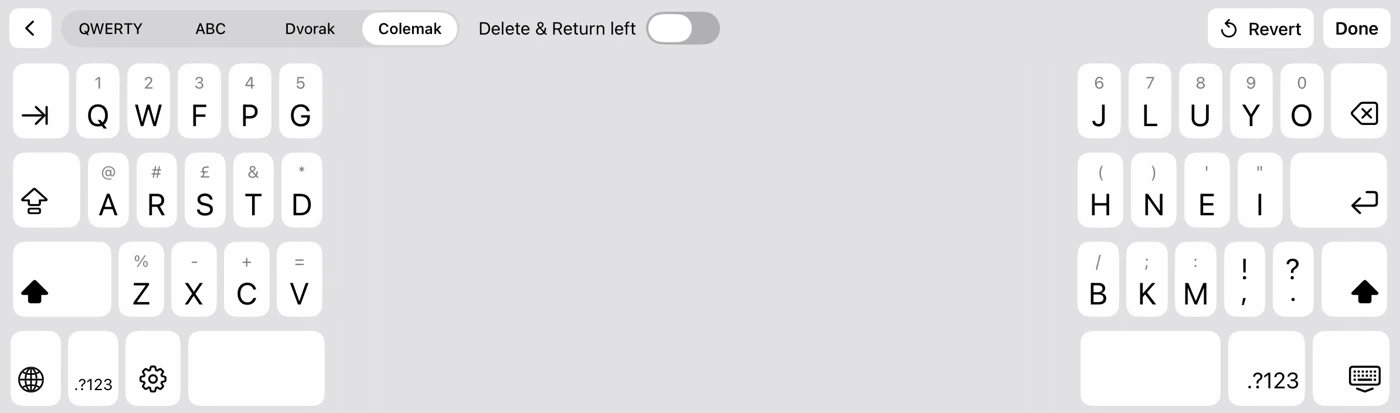
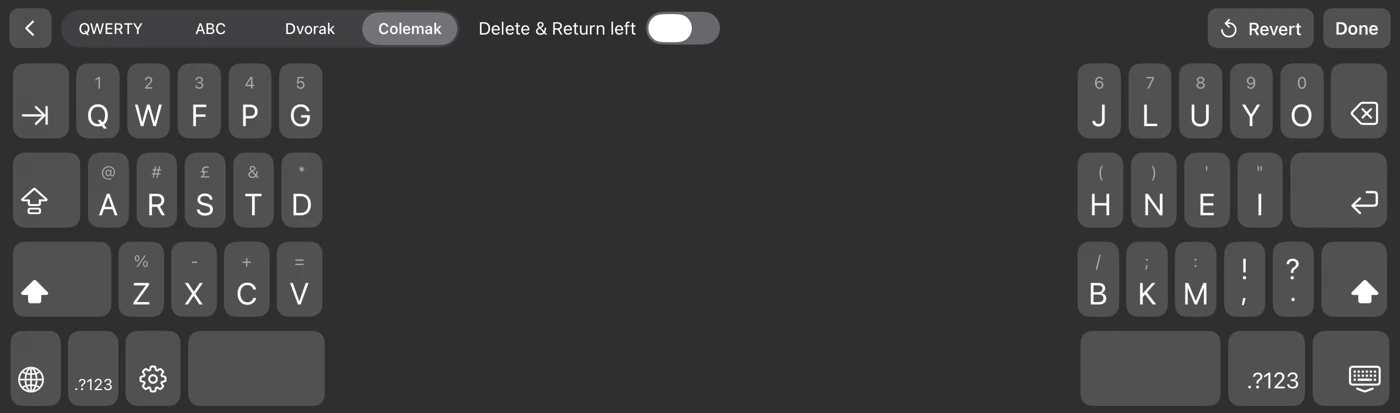
The compact layout has an important difference
On the compact keyboard, the middle letter row has nine positions. We put O at the end of the top row, after Y. The middle row reads A R S T D H N E I. On the expanded keyboard, O is back at the end of that middle letter sequence.
That means the compact version is an adaptation, not an exact copy of a desktop Colemak keyboard. We also do not currently offer a Colemak-DH preset. If either detail matters to your muscle memory, please test the preview before buying.
Letter arrangement and physical fit are different choices
Colemak changes which letters occupy the keys. Fit controls change their size and position. In split mode you can move the banks inward from the screen edges toward your thumbs. In joined mode you can still adjust height and position without separating the keyboard.
Try the same short sentence in portrait and landscape, then include punctuation, Delete and Return. A familiar letter arrangement does not automatically mean familiar thumb movements on glass. Our fit walkthrough gives a simple way to compare adjustments.
What we want to learn from Colemak users
Does the compact O position interrupt you? Are punctuation and symbol gestures where you expect? Would a different adaptation be easier to understand? We would rather hear a specific awkward moment than assume that including a layout name means we have finished supporting its users.
Try it and tell us what feels wrong
Download SplitKeyboard by Amberlake to try the free in-app preview. Typing in other apps requires a one-time unlock (£4.99 in the UK; Apple shows local prices). No account or Full Access is needed, and the keyboard does not collect your typing. Autocorrect, predictions, swipe typing and dictation are not currently included.
Send feedback through Feedback & requests. Your iPad model, orientation, chosen language and the particular key that felt unexpected will help us reproduce it. Please leave out private text.