
Practical guide ·
Accessibility and iPad typing: why split and joined both matter
There is no single grip, reach or typing method that works for everyone. We built SplitKeyboard so more of the keyboard can adapt to the person using it: two banks or one, keys closer to the thumbs, and height and position that can be changed separately.
By Amberlake, maker of SplitKeyboard. Written with AI assistance and checked against the app’s current implementation. These are our development notes, not a community endorsement.
Accessibility is more than comfort
As W3C’s accessibility guidance explains, usability and accessibility overlap, but accessibility specifically addresses barriers experienced by people with disabilities. Making a keyboard adjustable is one useful design choice. It does not, by itself, establish that the whole app is accessible.
That distinction matters to us. We want feedback from people with different access needs, rather than assuming that the way we hold and type on an iPad represents everyone. A disability label alone would not tell us which controls or interactions someone needs.
What split mode can change
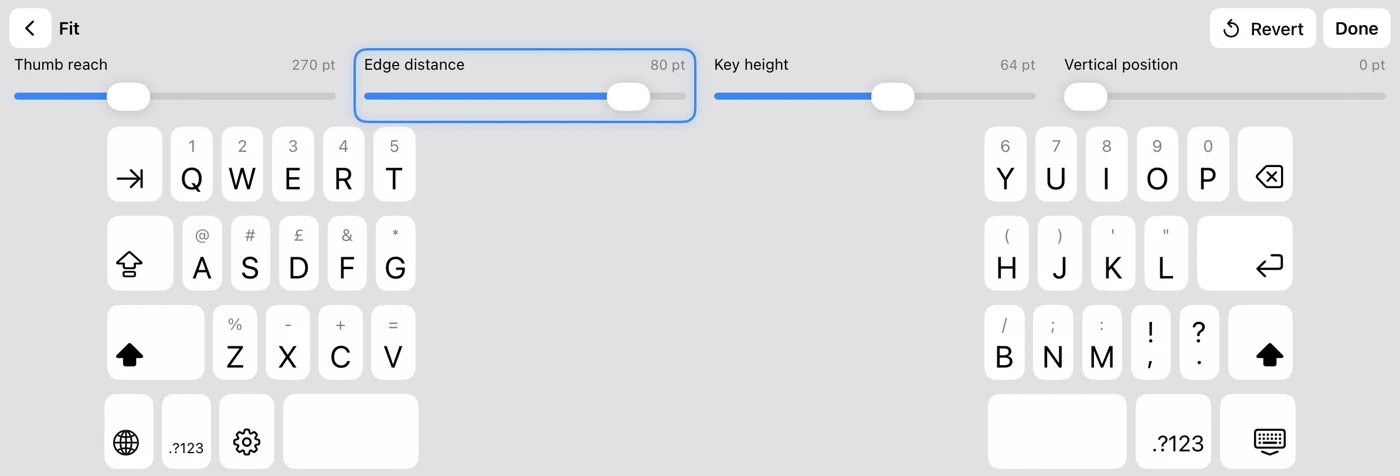
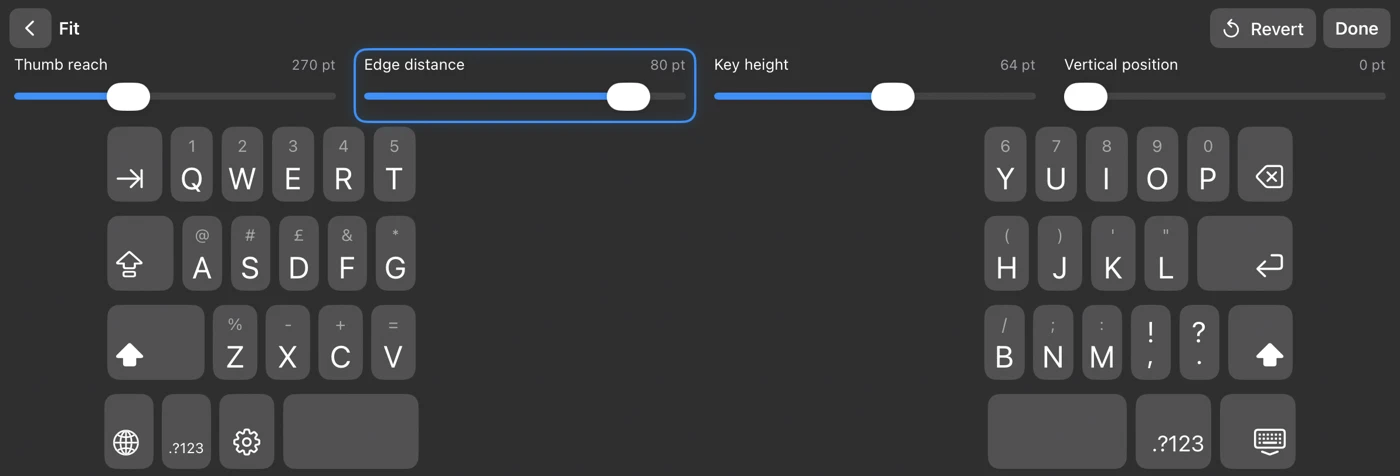
Reaching for letters near the centre of a wide screen can require a change of grip. SplitKeyboard separates the keys into two banks and lets you move them inward from the edges. You can look for a position that puts more of the keys within your own reach.
This may be useful to someone who finds a fixed layout awkward. It is not a claim that split typing is better for everybody or that the app treats pain or fatigue. Try it with your usual grip and task, and judge the result for yourself.
Why joined mode matters just as much
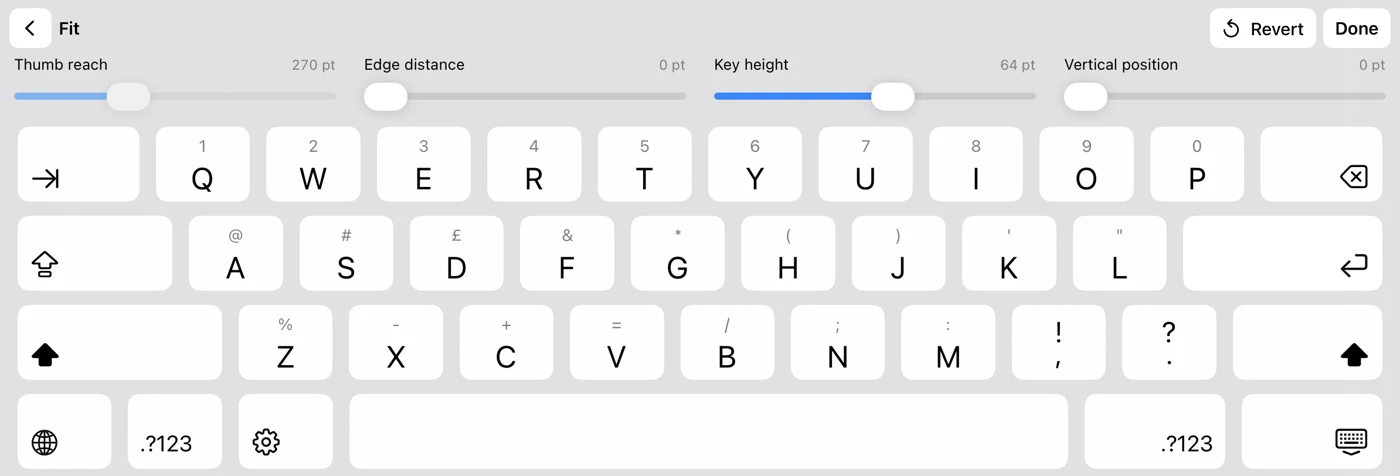
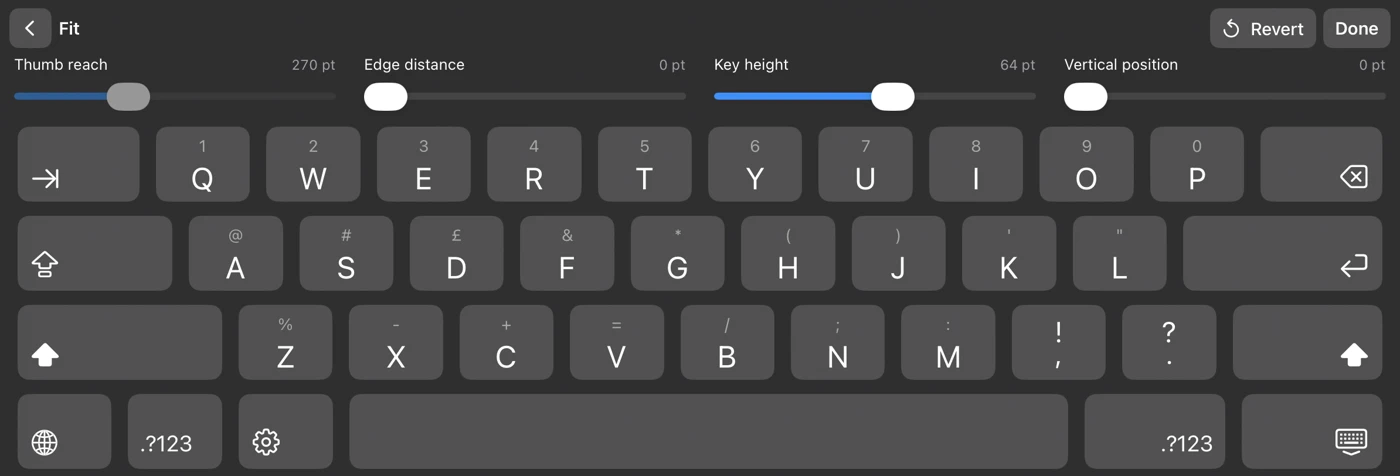
Not everyone wants two banks of keys. You might prefer one continuous layout, type with a different method, or simply find splitting confusing. Joined mode keeps that familiar arrangement while still allowing adjustments to key height and vertical position.
A taller key and a higher keyboard solve different problems. Height changes the target’s shape; position changes where it sits on the screen. Raising the keyboard also uses more room above it, so the right setting must work with the text you need to see.
A practical way to explore the controls
- Start in the free in-app preview with the mode you already find most understandable.
- Change one fit setting and type a short piece of ordinary text.
- Include Space, Delete and Return, not just letters.
- Check portrait and landscape separately. The app can keep different fits for each orientation and mode.
- Use Undo if an adjustment makes things harder, or save a profile when you find a setup you prefer.
The fit walkthrough covers these controls in more detail. If selecting or operating a control is itself a barrier, we want to hear about that too.
Be clear about what the app does not offer
SplitKeyboard currently has no dictation, autocorrect, predictions or swipe typing. It is not a replacement for the iPad’s assistive technologies, and we are not claiming verified compatibility with every VoiceOver, Switch Control or Voice Control workflow.
Apple documents its broader iPad mobility accessibility options. Some people will find those features, a different keyboard or a physical input device more suitable. The useful outcome is being able to type, not having to use our app.
Tell us about the task, not private medical details
Helpful feedback might be: “In portrait I can reach the outside letters, but Return is difficult,” or “I cannot tell which fit control has focus.” These are examples of the detail we need, not testimonials. You do not need to share a diagnosis or any private text.
We are looking for feedback that helps us make a better typing experience in both split and joined mode. We cannot promise that every request is already supported, but we can be honest about the current controls and their limits.
Try it and tell us what feels wrong
Download SplitKeyboard by Amberlake to try the free in-app preview. Typing in other apps requires a one-time unlock (£4.99 in the UK; Apple shows local prices). No account or Full Access is needed, and the keyboard does not collect your typing. Autocorrect, predictions, swipe typing and dictation are not currently included.
Send feedback through Feedback & requests. Your iPad model, orientation, chosen language and the particular key that felt unexpected will help us reproduce it. Please leave out private text.