
A customisable split keyboard for iPad. Made to fit
your hands.
Bring the keys within thumb reach. Split or joined, adjust the height and position to suit the way you hold your iPad.

Free in-app preview. £4.99 once to type in other apps.

Split the keyboard on iPad Pro and iPad Air.
SplitKeyboard by Amberlake is an on-screen keyboard app for iPad. Split the keys into two halves or keep them joined, then adjust their reach, height and position. The halves can move inward to meet your thumbs instead of staying pinned to the sides.

Make it yours.
Key height
Edge distance
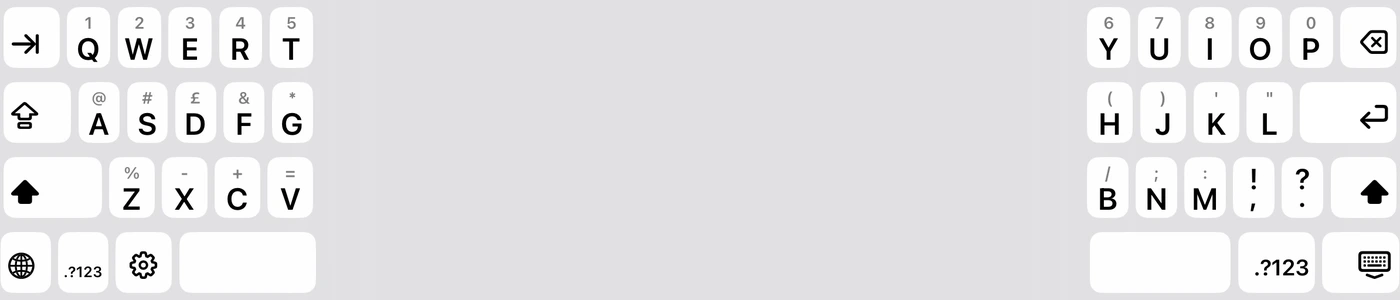
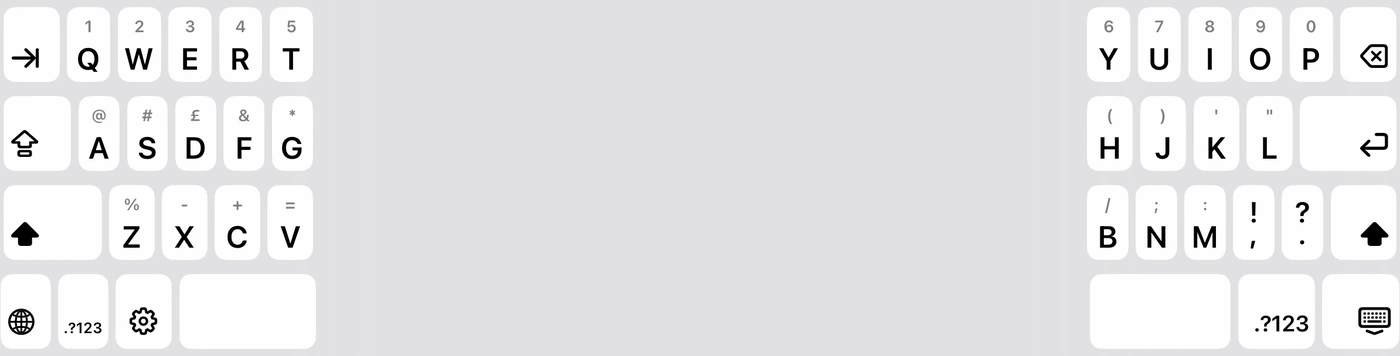
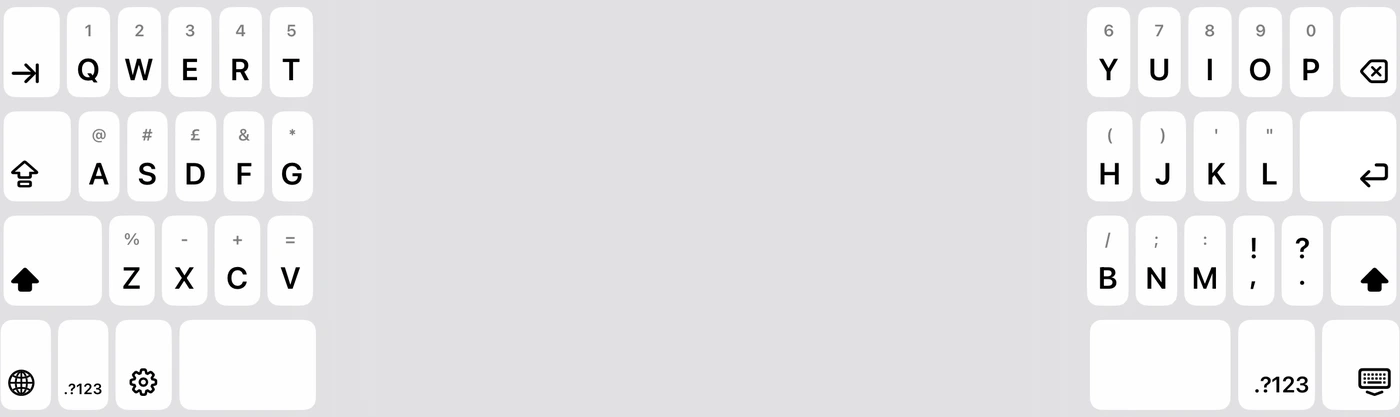
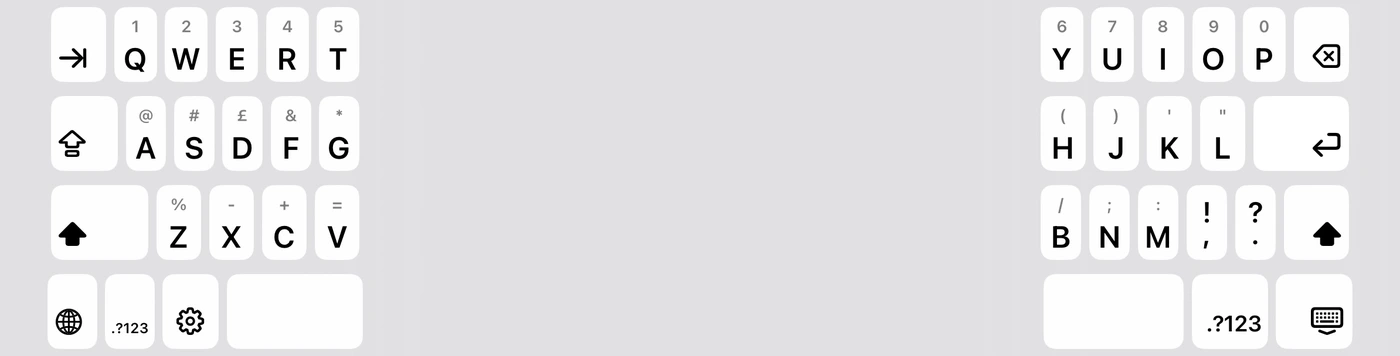
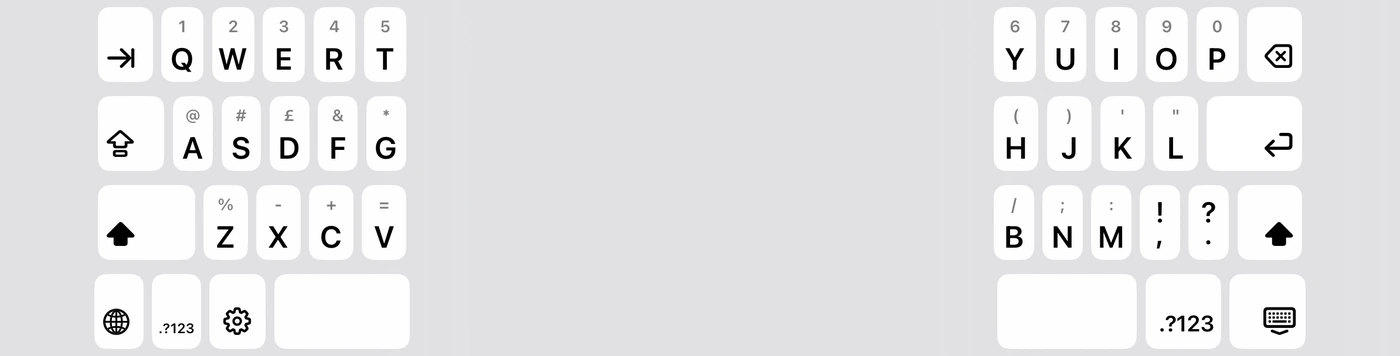
Keyboard design shown in version 1.01.
Split or joined
Your reach. Your height.
Adjust while you type
Numbers, arrows & symbols
Save your fit. Undo a change.
No data collection
No Full Access or account needed.
Light or dark.
Always familiar.


More room to make it yours.
A keyboard that fits your hands.
Keep it joined or split it. Then make the keys your own.
- Bring the keys within reach. Adjust each half for your thumbs.
- Set your own height. Make the keys taller or lift the keyboard.
- Choose your extras. Choose extra arrows and symbols, with your preferred characters.
- Save different fits. Use presets and profiles for the ways you type.
A little support goes a long way.
Support it early.
Keep it for life.
Try it in the app for free. No time limit.
Pay £4.99 once to type in other apps. Lifetime access and updates. No subscription.
UK founders’ price. Local prices shown by Apple.
For iPadOS 18 or later. Download from the App Store.
Help shape what comes next.
What would make
typing better?
An idea or a bug? We’re listening.
Send feedbackEmail hello@amberlake.co.uk or choose Feedback & requests in the app. Leave out private typing and payment details.
A few useful answers.
Why is the Split option missing from my iPad keyboard?
Apple’s built-in split keyboard is available on iPad mini and iPad (9th generation and earlier), according to Apple’s support guide. iPad Air and iPad Pro do not have that option. SplitKeyboard is a separate keyboard app that adds an adjustable split layout on supported iPads, including Air and Pro. You can try its fit in the free in-app preview before paying to use it in other apps.
Can I change the keyboard size and position on iPad?
Yes. Adjust thumb reach, key height, vertical position and distance from the screen edges. Add numbers, arrows or symbols, then save your fit as a profile. Try all of this in the free in-app preview.
Can I split the keyboard on iPad Pro or iPad Air?
Yes. SplitKeyboard supports iPad models running iPadOS 18 or later, including 11-inch and 13-inch iPad Pro and iPad Air. Adjust each half to fit your thumbs.
Which iPad models does it support?
iPad models running iPadOS 18 or later, including 11-inch and 13-inch iPad Pro and iPad Air. It’s for iPad only, not iPhone.
How much does it cost? Is it a subscription?
The app and its in-app preview are free, with no time limit. A one-time £4.99 in-app purchase lets you type with SplitKeyboard in other apps, with lifetime access and updates. There’s no subscription. £4.99 is the UK founders’ price; Apple shows local prices.
Will founders have to subscribe later?
No. Founders keep lifetime access and updates, even if pricing changes later.
How do I type numbers and symbols?
Use 123 for numbers and #+= for symbols. Hold a key for its alternate character or swipe down to type it.
Will it work in every app?
Most apps. Passwords, some phone-number fields and apps that block other keyboards use Apple’s keyboard. Hold the globe or emoji key to switch.
Does it need Full Access?
No. There’s no Full Access or account to set up, and SplitKeyboard doesn’t store or send what you type.
Does it have autocorrect, swipe typing or dictation?
Not yet. Autocorrect, word suggestions, swipe typing and dictation aren’t included. Switch to Apple’s keyboard when you need them.
What languages does SplitKeyboard support?
English (UK), French, German, Spanish, Italian, Portuguese, Dutch, Swedish, Norwegian and Danish. French uses AZERTY and German uses QWERTZ.
Can I use Dvorak, Colemak or ABC on iPad?
Yes. English layouts include QWERTY, ABC, Dvorak and Colemak, with custom letter swaps.
Can I keep a familiar joined keyboard?
Yes. Switch between a joined QWERTY layout and split typing whenever you like, with a separate fit for each.
Can I bring the keys closer to my thumbs?
Yes. Adjust thumb reach and edge distance to move each half where it feels comfortable. Split and joined layouts can keep separate fits.
Can I customise it for my reach or accessibility needs?
Move the split halves inward, adjust key height and vertical position, and keep separate fits for split and joined typing in portrait and landscape. The aim is a comfortable layout with less reaching. Accessibility needs vary: try your own reach and layout in the free in-app preview before buying. We welcome accessibility feedback to help make typing more comfortable.
Can I turn off the extra keys?
Choose whether to show cursor arrows and extra symbols, then pick the characters you want. The smaller-iPad layout also has an optional number row; larger iPads keep their built-in number row.
Can I change the key height and keyboard position separately?
Yes. Adjust key height and vertical position independently to find a fit for the way you hold your iPad.
Can I try it before buying?
Yes. Try the keyboard, find your fit and take a short typing test. The in-app preview is free with no time limit. Pay once to type in other apps.
Find a fit for your thumbs
Start in the free in-app preview, holding your iPad the way you normally type. Try a few words after each adjustment.
- Choose split or joined. Try split for two-thumb typing, or keep a familiar joined layout.
- Bring the keys to you. Open Fit and adjust Thumb reach and Edge distance until you can reach the keys without changing your grip.
- Adjust height and position separately. Key height changes the keys; Vertical position raises the keyboard. Raising it also uses more screen space.
- Try both orientations. Check portrait and landscape, then save a profile. Split and joined layouts can keep separate fits.
Everyone’s reach is different. Try the built-in typing test and tell us what would make typing more comfortable.
Set up SplitKeyboard on your iPad
- Open SplitKeyboard and try the free preview.
- Unlock lifetime access to type in other apps.
- Go to Settings, General, Keyboard, Keyboards, Add New Keyboard. Choose SplitKeyboard.
- Open Notes. Hold the globe or emoji key and choose SplitKeyboard.
Already paid? Choose Restore Purchases in the app using the same Apple Account. Full Access is not needed. Check compatibility and features.